If you’re trying to watch something on 0gomovies and playback doesn’t start, it’s usually not random. Most issues come from a small set of setup details—browser permissions, playback settings, device compatibility, or network restrictions. This guide focuses on one practical goal: enabling smooth playback on both mobile and desktop.
Rather than covering everything about streaming in general, the steps below zero in on the most common “can’t play” situations. Follow them in order, and you’ll quickly narrow down what’s blocking playback. Then, when your setup is correct, 0gomovies becomes the simple way to get back to watching.
Confirm Your Device and App Browser Support

Playback problems often start before the video even loads. On desktop, confirm you’re using a modern browser (Chrome, Edge, Firefox, or Safari). On mobile, use the browser you normally rely on (Chrome for Android, Safari for iPhone/iPad) instead of switching to unusual in-app browsers.
Also check that your device can play the type of media being served. If your phone or computer is outdated or heavily restricted, you may see symptoms like a blank player, stalled loading, or repeated reloads. Updating your operating system and browser can resolve a surprising number of playback-blocking issues.
Finally, make sure you’re not using a mode that can disable media features. Examples include “Lite Mode,” aggressive battery saver profiles, or privacy modes that block scripts and media requests.
Enable Playback Permissions and Site Settings
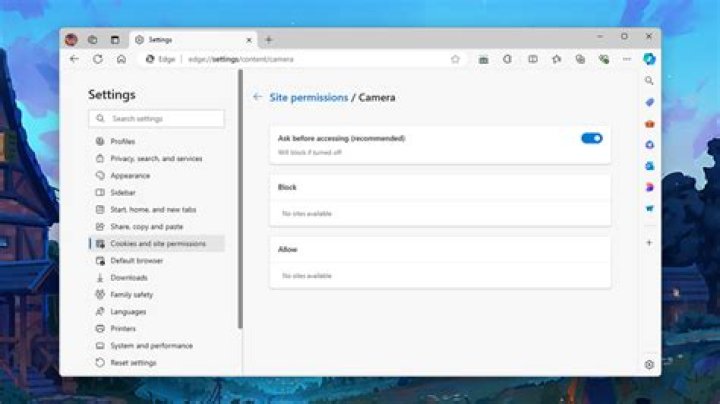
Even when your network is fine, browsers may block playback if site permissions are too strict. Start by reviewing the site-specific settings for your browser, especially permissions related to autoplay, media playback, and content.
On mobile, some browsers treat autoplay as user-initiated only. That means if you open the page and the video tries to play automatically, you may need to tap play once. If tapping never starts playback, check whether autoplay and sound controls are restricted by the site permissions.
On desktop, ensure the browser is allowed to run media and scripts for the page. If you previously denied permissions for that site, revert them to allow playback.
Fix Black Screen and Stuck Loading on Desktop
If the player opens but shows a black screen or keeps spinning, the issue is often browser cache, extensions, or blocked content. Begin with the simplest fix: refresh the page and try play again.
Next, disable extensions that can interfere with video playback. Common culprits include ad blockers, tracking/privacy blockers, script blockers, and “HTTPS upgrade” tools. If playback works after disabling extensions, re-enable them one by one to identify the specific extension causing the conflict.
Then clear the site’s cached data. Instead of wiping everything, use “clear site data” or “clear browsing data for this site” if your browser supports it. Stale files can break the player even if the page loads normally.
Also check that your browser has hardware acceleration enabled. When hardware acceleration is disabled, some players become unstable or fail silently. You can typically find the setting under performance options in browser settings.
Fix Playback Issues on iPhone and Android

Mobile playback issues are frequently caused by power settings, app webviews, or network constraints. If the video doesn’t start, tap the player’s play button once and wait a few seconds rather than repeatedly reloading. Some streams need time to negotiate the media connection.
For iPhone and iPad, check that “Low Power Mode” is off. Battery-saving modes can throttle background media and degrade playback reliability. On Android, disable extreme battery optimization for your browser if playback is inconsistent.
Next, try switching browsers. If playback fails in the browser you started with, test in a different one. This isolates whether the issue is tied to browser media support or settings.
Finally, ensure your mobile data and Wi-Fi are functioning normally. If playback only fails on Wi-Fi, try mobile data to compare behavior. If it fails on both, focus on browser settings and cache.
Adjust Autoplay, Sound, and Video Controls
Autoplay restrictions are one of the most common reasons users think playback is “broken.” Many mobile browsers require a user gesture—such as tapping play—before media starts. If the page loads but the video does not begin, press play manually.
If you need audio or subtitles, verify that the volume isn’t muted and that captions are enabled correctly. Some players remember the last state; if you previously disabled sound or subtitles, playback may appear “silent” even though the stream is running.
Also consider screen or focus behavior. If you background the tab or switch apps immediately after starting, mobile browsers may pause playback. Return to the page and attempt play again.
Address Network and Ad-Blocking Restrictions
When playback fails on one network but works on another, the problem is often network filtering. That includes corporate Wi-Fi policies, ISP routing issues, or DNS-based filtering. If you can, test using a different Wi-Fi network or a mobile hotspot.
Ad blockers and DNS filters can also block video requests. Even if the site looks correct, video streams can fail if the player’s network calls are intercepted or denied. If you use a private DNS, consider temporarily disabling it to test playback.
For desktop, review browser-level “protected content” or tracking protection settings. Some security features are beneficial but may break certain media players. Keep the test controlled: change one setting, retry playback, then proceed.
Clear Cache and Reset Playback-Related Data
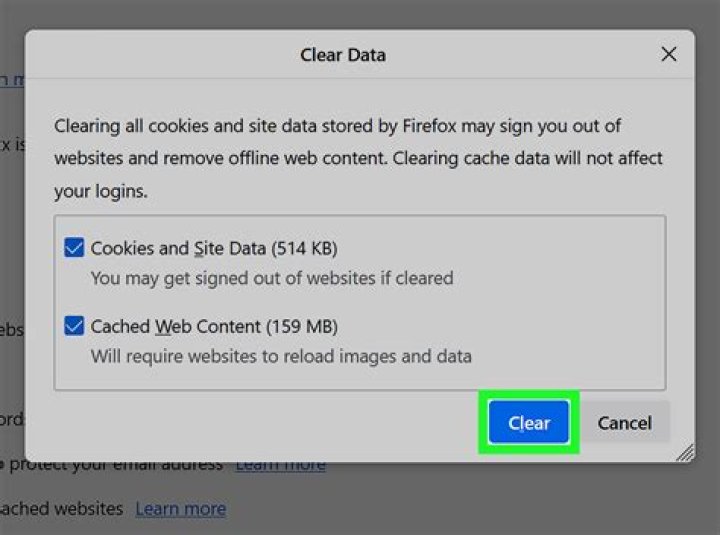
Cache and cookies store information that helps the browser load a page faster. Unfortunately, that same stored data can become outdated and cause the player to fail. Clearing site data is a targeted way to reset playback.
On desktop browsers, use the site settings menu to clear stored data for the domain you’re using. Then reload the page and try playback again. On mobile, the equivalent is often “clear browsing data” for the browser app or “clear history and website data.”
After clearing, re-check permissions. For example, if the browser previously blocked media autoplay or scripts, your reset may require you to allow them again.
Try a Controlled Playback Test to Identify the Exact Cause
Rather than doing random fixes, run a controlled test that isolates variables. Start with the same device, same browser, and the same network. Then apply one change at a time—like disabling an extension, clearing site data, or switching networks.
For example, you might compare three states: (1) playback with extensions enabled, (2) playback with extensions disabled, and (3) playback after clearing site data. Whichever state works tells you what category of issue you had.
This approach also helps you avoid time-wasting loops. If playback works only after you switch networks, you likely have a network restriction problem. If playback works only in one browser, the issue is browser settings or media compatibility.
Use 0gomovies with a Playback-Friendly Setup
Once your device and browser settings support media playback, using 0gomovies becomes much more predictable. The main idea is to keep your setup stable: use a modern browser, avoid heavy script-blocking tools during playback, and don’t rely on autoplay as your only test.
If playback fails again later, return to the basics: verify permissions, clear site data for the specific site, disable interfering extensions, and test on an alternate network. This is usually enough to restore playback without needing drastic troubleshooting.
In other words, treat playback like a checklist. When each item is handled—permissions, cache, extensions, and network—0gomovies can deliver smooth streaming on both mobile and desktop.
Final Thoughts
Enabling playback on mobile and desktop is rarely about luck. It usually comes down to a few setup details: browser support, site permissions, cache, extensions, and network restrictions. Apply the steps in this 0gomovies setup guide in order, and you’ll quickly pinpoint what’s blocking playback and get back to watching.
